
The Simple Way to Clear Cache and Cookies (and Why It Matters)

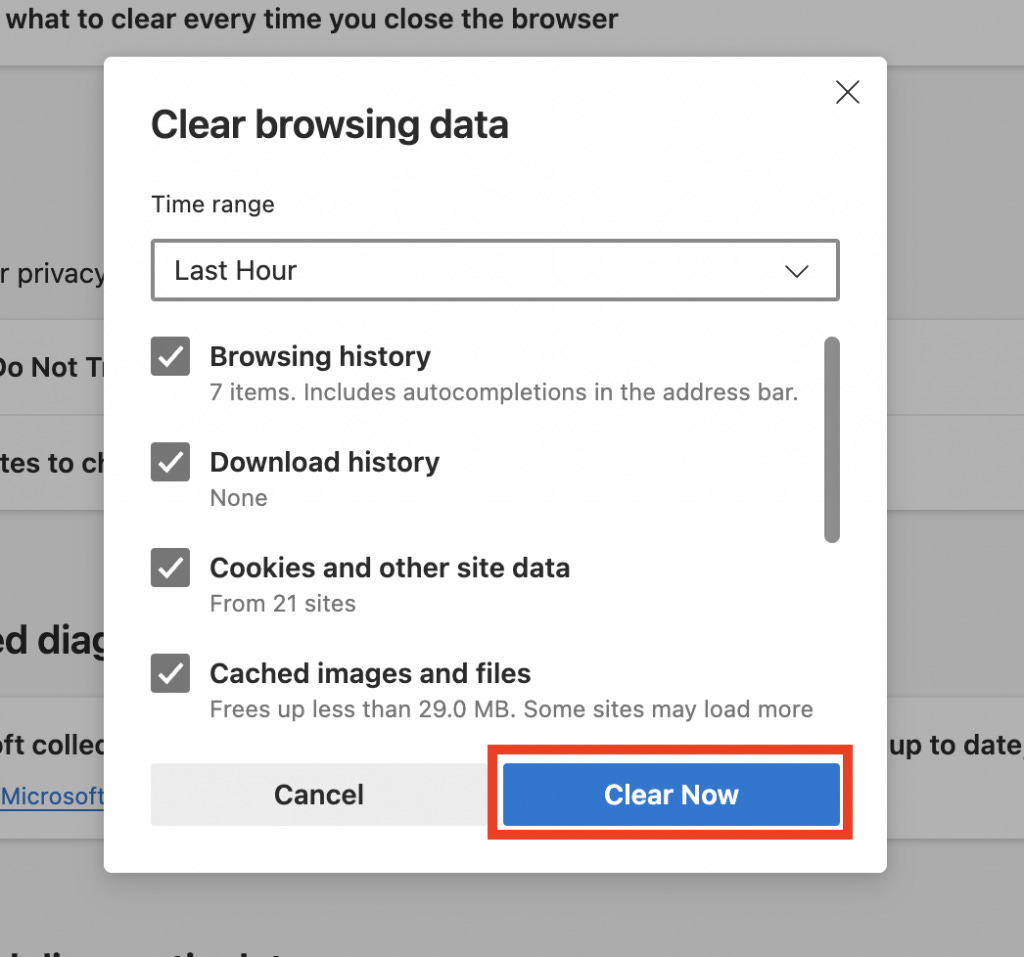
Quick TL;DR: clearing your browser’s cache and cookies fixes display or login glitches, frees storage, and improves privacy. It’s safe (you won’t break the web), but you may be signed out of sites — so have passwords handy. WIRED Lifewire
What are cache and cookies — in plain English
Cache: temporary files (images, scripts) your browser saves so sites load faster next time.
Cookies: tiny bits of data sites store to remember you (logins, preferences, shopping carts).
Caches speed things up but can become stale; cookies help convenience but can track you. Clearing them refreshes the browser’s memory and removes tracking/storage. WIRED+1
Why it matters
Fixes glitches — outdated cached files cause broken layouts, 404-content, or old images. Clearing often resolves weird site behavior. WIRED
Improves privacy — cookies can reveal your browsing history to anyone with access to your device. Removing them reduces this risk. WIRED
Frees space & speeds devices — cached files accumulate and consume storage, especially on phones. Clearing helps reclaim space. Tom's Guide
Troubleshooting — an essential first step before blaming the site or reinstalling apps. Tech support will often ask you to clear cache/cookies. WIRED
When to clear
A site looks wrong or shows old content.
You can’t log in or a login keeps failing.
Your browser or phone feels sluggish or storage is low.
After removing sensitive information from shared/public devices.
Quick universal trick (desktop)
Press Ctrl + Shift + Delete on Windows (or Cmd + Shift + Delete on macOS) to open the “Clear browsing data” dialog in most browsers — choose Cookies and other site data and Cached images and files, pick a time range, and clear. (If you prefer menus, each browser has a Settings → Privacy/Clear browsing data path.) Microsoft Google Help
Step-by-step: major browsers
Google Chrome (Desktop & Mobile)
Desktop: Menu (⋮) → Settings → Privacy and security → Clear browsing data → choose time range → check Cookies and other site data and Cached images and files → Delete data.
Mobile (Android/iOS): Chrome app → More (⋮ or ⋯) → History → Clear browsing data → pick items/time range → Clear data. Google Help Information Technology Services
Mozilla Firefox (Desktop & Mobile)
Desktop: Menu → Settings → Privacy & Security → Cookies and Site Data → Clear Data… (select cookies and cache). Firefox also shows site-by-site data if you want to remove just specific sites. Mobile: Settings → Clear private data or Clear browsing history options. Mozilla Support+1
Microsoft Edge
Menu (⋯) → Settings → Privacy, search, and services → Clear browsing data → Choose what to clear → select time range and items → Clear now. Edge also supports per-site cookie removal under Cookies and site permissions. Microsoft Support Microsoft
Apple Safari (macOS & iPhone/iPad)
iPhone/iPad: Settings app → Safari → Clear History and Website Data (or go to Safari → Advanced → Website Data to remove specific site data).
macOS Safari: Safari menu → Clear History… or Safari → Preferences → Privacy → Manage Website Data to remove cookies/cache selectively. Note: Clearing history in Safari removes cookies and browsing data but won’t delete AutoFill info. Apple Support+1
Handy tips & best practices
If you don’t want to sign out: clear only cached images and files (not cookies). But some fixes require cookies removed. Google Help
Use private/incognito windows for one-off sessions — they don’t store cookies or cache after closing.
Remove site-specific cookies if only one site misbehaves (most browsers let you search cookies by domain and delete them). Microsoft Support
Keep a password manager (so signing back in is painless).
Automate carefully: some browsers let you auto-clear on exit; useful for shared devices but annoying on personal machines.
Back up important data (e.g., saved site preferences, offline data) if you rely on them.
Clearing cache and cookies is a low-effort maintenance move that solves a surprising number of browser problems and helps protect your privacy. Do it when things go wrong — or add it to your quarterly tech tidy-up. If you want, I can create a one-page printable cheat-sheet with the exact menu path for your browser(s).